Showing posts with label windows. Show all posts

Sunday, 16 February 2014

BLE for developers in Windows 8.1 Part I

    For who doesn't know Bluetooth Smart/Low Energy devices are devices optimized for low power consumption. Devices can act as an GATT Server, GATT client or both at the same time. In Server mode the device exposes one or more services. Each service has one or more characteristics with properties attached to it (read, write, notify, broadcast,...). The GATT Client connects to the Server and "consumes" its services.

   Windows 8.1 has added support for communicating with Bluetooth devices from the store applications. This opened the development for a lot of accessories including the Bluetooth Low Energy devices. Windows 8.1 supports only GATT client mode. This is the first iteration of the Bluetooth api and, from some points of view, it is not complete and kinda rushed out to be available. Here are some missing features:

  1. The User eXperience when connecting to an Bluetooth device is bad. The common scenario for this kind of device is that you buy the device you see the application for the Windows Store is available, download it and run the app to play with the device. Here comes the "fun" part: form inside the store application you cannot connect to devices that were not previously paired from PC Settings - Devices - Bluetooth. So, for the first connection, when the user launches the application and you don't find any device to connect to, you will have to find a way to explain and convince the user to open Settings ->Change PC Settings->.... Bluetooth and then come back to your application. Also it is not possible to launch the  Bluetooth screen directly like in Windows Phone case.
  2. For the BLE devices the whole idea of the application is to consume less but have a connection between the device (server) and the application (client). Too bad that is there is no to make teh application run in the background or receive notifications from the devices when the application is suspended. This missing feature "kills" a little bit the BLE principles and without it the protocol from the app side is not better than the classical SPP. The application should be able to connect, receive notifications in the background, be aware when the device disconnects and to be able to reconnect when available again.
  3. Without being able to connect to devices that were not previously paired beacon scenarios are not possible.
  4. Missing api's to discover the services and the characteristics of each service for any BLE device. 
     Beside that let's have a first look at how the new apis work. I have bought several BLE devices: The Texas Instruments CC2541 SensorTAG, Estimote tag,  Kensington Proximo TAG. (I actually bought the devices in inverse order: Kensington, Estimote TI ).
       If you want to start testing/demo the BLE api I think the SensorTAG  is the best choice. The Texas Instruments chipset CC2540/1 is one of the most used chipset in BLE devices and the price of this kit is around 25$. It includes 6 sensors inside: IR temperature Sensor, Humidity Sensor, Pressure Sensor, Accelerometer, Gyroscope, Magnetometer so you can simulate various scenarios.
     The first step would be to understand if your system supports BLE devices. For this you will have to open Device Manager-> Bluetooth and see if the "Microsoft Bluetooth LE Enumerator" is present. If it is your system can connect to Bluetooth Smart devices. 


  The second step would be to pair with the device (actually you could skip the first step and if you don't see your device in the list see if your system supports BLE). To make the device visible for pairing just push the button on the left side of the device.


    If the device you are looking for is present pair with it (used 0000 as pin). The system configures all the GATT services internally.  Here is how your windows Bluetooth devices look internally before and after the pair:


    You can actually see that we have new GATT services added to our system.

    When using the GATT api you will actually have to know the service you want to connect to and also the characteristics that the service exposes. There are several ways to do that:

  1. The most obvious one you have the documentation of the device and see all the services and their characteristics. Here is the pdf of the TI Development KIT
  2. You can actually get the Service UUID's from the Device Manager:


and then you could hope it is one of the standard BLE profiles so you could have the characteristics for that service. In the picture above the UUID of the GATT service is f000aa40-0451-4000-b000-000000000000 and it doesn't fit any standard profile. The standard profiles fit this pattern: 0000XXXX-0000-1000-8000-00805f9b34fb where XXXX is the id of the profile (for example 0x1800 is the generic access profile). There are some GATT Services that are not showed in the Device List even if present and, as far as I tested,  these are the Generic Access 0x1800 and  Generic Attribute 0x1801 and Device Information 0x180A. You can  always try to add these services to the list of services you want to connect to as it will enable you to have more information on the device you are connecting to.

    So here is the list of the GATT services exposed by the SensorTAG:
Custom:
Thermometer "f000aa00-0451-4000-b000-000000000000"
Accelerometer "f000aa10-0451-4000-b000-000000000000"
Humidity "f000aa20-0451-4000-b000-000000000000"
Magnetometer "f000aa30-0451-4000-b000-000000000000"
Barometer "f000aa40-0451-4000-b000-000000000000"
Gyroscope "f000aa50-0451-4000-b000-000000000000"
Standard:
Key Service "0000ffe0-0000-1000-8000-00805f9b34fb"
+ standard and hidden in device manager:
Generic Access: 00001800-0000-1000-8000-00805f9b34fb
Generic Attribute: 00001801-0000-1000-8000-00805f9b34fb
Device Information: 0000180A-0000-1000-8000-00805f9b34fb

     Now that we know what services our device exposes we can start creating the Store Application and add the necessary capabilities which will enable us to connect to the device. Start Visual Studio and create an Windows Store application then edit the Package.appxmanifest file using View Code option. Add the following capabilities:

 <Capabilities>  
<Capability Name="internetClient" />
<m2:DeviceCapability Name="bluetooth.genericAttributeProfile">
<m2:Device Id="any">
<m2:Function Type="serviceId:f000aa00-0451-4000-b000-000000000000"/>
<m2:Function Type="serviceId:F000AA10-0451-4000-B000-000000000000"/>
<m2:Function Type="serviceId:F000AA20-0451-4000-B000-000000000000"/>
<m2:Function Type="serviceId:F000AA30-0451-4000-B000-000000000000"/>
<m2:Function Type="serviceId:F000AA40-0451-4000-B000-000000000000"/>
<m2:Function Type="serviceId:F000AA50-0451-4000-B000-000000000000"/>
<m2:Function Type="serviceId:0000ffe0-0000-1000-8000-00805f9b34fb"/>
<m2:Function Type="serviceId:00001800-0000-1000-8000-00805f9b34fb"/>
<m2:Function Type="serviceId:00001801-0000-1000-8000-00805f9b34fb"/>
<m2:Function Type="serviceId:0000180A-0000-1000-8000-00805f9b34fb"/>
</m2:Device>
</m2:DeviceCapability>
</Capabilities>

  When interacting with the device you will have to find the devices that expose the services we want to connect to and then connect to the desired service. For this we will call Enumeration.DeviceInformation.FindAllAsync passing an AQS string to filter the devices. Let's say we want to connect to the devices that expose the Generic Access Service as it is an standard service. We can actually generate the AQS in 3 different ways for this service:

  1. Using the the standard implemented GattServiceUuids GetDeviceSelectorFromUuid(GattServiceUuids.GenericAccess)
  2. Generating an standard UUID from an shortID GetDeviceSelectorFromShortId(0x1800) -what it actually does is to add  "-0000-1000-8000-00805f9b34fb" to the id
  3. When the service is not a standard one you will have to use GetDeviceSelectorFromUuid(new Guid(serviceGuid)) and pass the custom service guid in our case serviceGuid="00001800-0000-1000-8000-00805f9b34fb"
   The code below shows how to read the device name using the Generic Access Service of the Sensor Tag. Here are the standard characteristics of the generic access service link.

       //Find the devices that expose the service  
var devices = await Windows.Devices.Enumeration.DeviceInformation.FindAllAsync(GattDeviceService.GetDeviceSelectorFromUuid(GattServiceUuids.GenericAccess));
if (devices.Count==0)
return;
//Connect to the service
var service = await GattDeviceService.FromIdAsync(devices[0].Id);
if (service == null)
return;
//Obtain the characteristic we want to interact with
var characteristic = service.GetCharacteristics(GattCharacteristic.ConvertShortIdToUuid(0x2A00))[0];
//Read the value
var deviceNameBytes=(await characteristic.ReadValueAsync()).Value.ToArray();
//Convert to string
var deviceName=Encoding.UTF8.GetString(deviceNameBytes,0,deviceNameBytes.Length);

   Now let's see how to interact with an non standard service and a characteristic that notifies when changing. I've chosen the accelerometer service of the SensorTAG:

       //Find the devices that expose the service  
var devices = await Windows.Devices.Enumeration.DeviceInformation.FindAllAsync(GattDeviceService.GetDeviceSelectorFromUuid(new Guid("F000AA10-0451-4000-B000-000000000000")));
if (devices.Count==0)
return;
//Connect to the service
var accService = await GattDeviceService.FromIdAsync(devices[0].Id);
if (accService == null)
return;
//Get the accelerometer data characteristic
var accData = accService.GetCharacteristics(new Guid("F000AA11-0451-4000-B000-000000000000"))[0];
//Subcribe value changed
accData.ValueChanged += accData_ValueChanged;
//Set configuration to notify
await accData.WriteClientCharacteristicConfigurationDescriptorAsync(GattClientCharacteristicConfigurationDescriptorValue.Notify);
//Get the accelerometer configuration characteristic
var accConfig = accService.GetCharacteristics(new Guid("F000AA12-0451-4000-B000-000000000000"))[0];
//Write 1 to start accelerometer sensor
await accConfig.WriteValueAsync((new byte[]{1}).AsBuffer());

In this case we connect to the service, we subscribe to the data characteristic notifications (we also ensure that the characteristic is in notify mode), and then we start the accelerometer sensor. Once the sensor starts it will notify us every 1000 ms. (default value that can be changed).

 async void accData_ValueChanged(GattCharacteristic sender, GattValueChangedEventArgs args)  
{
var values = (await sender.ReadValueAsync()).Value.ToArray();
var x = values[0];
var y = values[1];
var z = values[2];
}

We can do the same with all the other services exposed by the device.

Till next post NAMASTE!


Tuesday, 19 November 2013

Add/Remove Music and Video folders from Windows 8.1 Store Applications

    This is a functionality so buried inside the MSDN documentation that I had to "look" at another application that uses it and only after I was able to find the documentation for it. For the moment (guess because it was not given enough visibility yet) I think there is only one store application that uses it and it is, of course, built by Microsoft (not even Nokia Music application uses it). 
    So what is this all about? If you develop a store application that uses the MusicLibrary capability, you can access to the audio files inside the Music library folders. The problem, until now, was that there was no way to add/remove folders to/from the Music library inside a store application so, in case the user did not had any folder added to the Music library the developers had to find a way to explain how to manually add folders to the Music library (a mess believe me).
    The missing functionality is implemented by the NEW StorageLibrary class available for Windows 8.1 store applications. The class is actually a diamond in the rough:


    The usage is basic but it is exactly what I needed. You need to use the GetLibraryAsync method to retrieve the StorageLibrary you need. Once you have it you can retrieve the StorageFolders currently added to the library and for the Music and Videos libraries, you can add or remove folders from this library. If removing a folder from the library the user will be prompted if he agrees with the removal. For adding a folder using the async method the user will be prompted with a folder picker and returns the newly added StorageFolder, otherwise null.
    As usually I really hope that, if you need it, this blog post will spare you the hours I've spent in finding out how it is done.

Update: There is also a code sample available on msdn Library management sample

NAMASTE


Sunday, 17 November 2013

What Windows Phone Start screen should learn/inherit from Windows 8.1

    Last week I did a session on live tiles and it got me thinking on how Microsoft and the Windows Phone team could actually improve the Start screen experience and also the application list that, in my opinion, lacks design and more important it is not very practical to use. Please consider that i am not a designer and i did not have time to invest in doing the screenshots (did cut and paste using Paint.Net). I am doing this post just to illustrate my ideas.
    Let me start with the start screen. The live tiles are an awesome feature and really differentiate Windows and Windows Phone from their competitors.  I think that, for certain functionality,the Windows 8.1/8 start screen is better than the Windows Phone one. First of all (and the most important) the Scroll Direction. The windows phone have the start screen in vertical compared to Windows 8 which is horizontal. Horizontal scrolling would be better and here are some reasons why I think this:
  • the main reason why you scroll is because you did not find what you were looking for so you would like to reach the part you are interested as fast as possible. All Windows Phone have the height > width in Pixels so scrolling horizontally you actually scroll MORE information than scrolling vertically 
  • If scrolling would be horizontal it would be possible to implement grouping just like Windows 8 and enable a functionality similar to semantic zoom or jump list to easily reach the tile/tiles you need
  • It would be also more familiar to people coming from other platforms (like Android or iOs) where the scrolling is horizontal
  • Different from Windows 8 or tablet UI I think that this scroll should be Paged and not continuous similar to what you have on iOS e Android. This is because the user would be faster to search what he needs (if it is not on the page I see now better scroll a whole page and not a part of it). This won't minimize in any way the live tiles functionality but would give better speed in seeing all I am interested in. 
  • If the user gives titles to the various pages then in the JumpList/SemanticZoom he would see those names otherwise he sees the number of pages and he can easily reach any page (even the last one) without scrolling and scrolling and scrolling.
  • The last page of the start screen that is not full would have the arrow orientated down just to give the hint to the user that the Application full list is "under" the start screen just like in Windows 8.1
Other aspect where Windows 8.1 start screen is better is the tile templates. Windows 8.1, in comparison with windows Phone, has much more templates that fit better the needs of the developers. In Windows Phone you can actually build your own images with everything on it but it would be better to have more standard templates. The current templates when used "as is" are pretty limited:
  • The flip template is "slow" to change from one side to the other and this way not everything you need to see is right in front of you. You should actually put secondary informations on the back and expect that 70% of the time the user would not wait for the tile to flip
  • The iconic template in small and medium sizes have the same informations so it is a "waste" of space to keep the iconic tiles in medium size when you could have them little 
  • The cyclic template is more decorative then functional. Even if you build the images I am curious how many people will actually wait for the images to finish a cycle instead of launching the application. For something like photos app it is ok if the user just want to add decorative items to your start screen
If the Start Screen would be horizontal in this case the application list should be accessed by scrolling vertically just like in the Windows 8.1. The current design of the application list is not optimal it doesn't take advantage of the space it has and because of that you would have to scroll a lot. Even with the Jumplist it is a lot of scrolling. It would be actually better (in my opinion) a paged grid + Jumplist/semantic zoom to easily jump the pages+ Search to easily find an app. Grid design it would even scale better on higher resolutions as it could have more columns. Here is a small comparison (I repeat I am not a designer). Again paged scrolling would give you better speed than continuous scrolling.


Near the search there could actually be a button that enables the user to change the grouping  (alphabetical, most used, recently downloaded,...).

If you read this post and have observations (maybe I am missing something) or ideas please let me know. There is always room to improve the user experience and my only wish is that Windows Phone get better and better each year.

UPDATE: And the most important when implementing horizontal scrolling, new templates apart from better functionality is better transition and familiarity (don't really find the right word) between desktop and phone


NAMASTE

Wednesday, 13 November 2013

HID communication for Windows 8.1 Store applications

     I've started thinking about this post a while ago when Windows 8.1 was still in preview (I actually did some testing at that time because I was really excited abouth this new "cool" scenario store applications) and after seeing this Build 2013 session: Apps for HID Devices
     As I did not had the cool missle launcher to play with I have chosen the XBOX360 Wireless controller connected to my PC using an USB adapter similar to this one. One of the reasons why I did this, apart from proof of concept post, is because I have some bluetooth toys that I like to "drive" using the Xbox360 controller (starting with version 8.1 we have full bluetooth support for the Store applications: SPP, OBEX, GATT/BLE ). The Xbox360 controller gives one of the best gaming experience, way better than any touchscreen, keyboard or motion controllers and also enables multiplayer gaming on the same device/screen. 
    In order to be able to connect to the Xbox controller we will need to find the VID, PID and UsagePage specific for our device. As I did not know these values I've used the HClient Sample application to retrieve them. To run the HClient sample you will need Microsoft Visual Studio 2013 and, more important, Windows Driver Kit (WDK) 8.1. HClient gives you detailed informations on all the HID devices connected to your PC and to easily find out which HID device is the one you are looking for just disconnect the device from the computer, look at the items inside the list, reconnect the device and identify the new device. This way I identified that my XBOX360 controller has VID: 0x045E, PID: 0x02A1, UsagePage: 0x1, Usage: 0x5  (there might be multiple hardware versions of the desktop adapter that might have different PIDs):  


Selecting the HID Caps for the controller we will see that the input report is 15 bytes long and we don't have an output or a feature report available for this device. This is one of the reasons why, in this case, it would be better to use XInput instead of HID because it would give you access to the lights and the motors inside the controller.

Now that we have the needed values we can start to build our Windows Store application. The first thing we need to do is to set the necessary Capabilities that enable communication between our application and the Xbox controller (manually edit the Package.appxmanifest inside your project using the View code option). In want to know more about the options you can set read How to specify device capabilities for HID.

So I've have added:

  <m2:DeviceCapability Name="humaninterfacedevice">  
<m2:Device Id="vidpid:045E 02A1">
<m2:Function Type="usage:0001 *"/>
</m2:Device>
</m2:DeviceCapability>

This way we specify that we only want our application to communicate with devices that have VID 045E and PID 02A1.

Now that we have setup the capabilities we can try to find and connect to and Xbox controller. We will use HidDevice.GetDeviceSelector to generate the query that we will pass to the method DeviceInformation.FindAllAsync that returns an array with all the XBox360 controllers connected to our PC.

   public class Xbox360Controller  
{
public const UInt16 Vid = 0x045E;
public const UInt16 Pid = 0x02a1;
public const UInt16 UsagePage = 0x01;
public const UInt16 UsageId = 0x05;
}

 string selector = HidDevice.GetDeviceSelector(Xbox360Controller.UsagePage,Xbox360Controller.UsageId,Xbox360Controller.Vid,Xbox360Controller.Pid);   
var deviceCollection = await Windows.Devices.Enumeration.DeviceInformation.FindAllAsync(selector);
if (deviceCollection.Count == 0)
return "No Xbox360 controller found!";
for (int i = 0; i < deviceCollection.Count && i < MaxControllers;i++)
{
var _device = await Windows.Devices.HumanInterfaceDevice.HidDevice.FromIdAsync(deviceCollection[i].Id, Windows.Storage.FileAccessMode.ReadWrite);
if (_device == null)
{
try
{
var deviceAccessStatus = DeviceAccessInformation.CreateFromId(deviceCollection[i].Id).CurrentStatus;
switch (deviceAccessStatus)
{
case DeviceAccessStatus.DeniedByUser:
return "User denied the access!";
case DeviceAccessStatus.DeniedBySystem:
return "System denied the access!";
}
}
catch { }
return "Failed to connect to the controller!";
}
Controllers.Add(new Controller(_device));
}

 We can connect to any of the devices in the returned array using HidDevice.FromIdAsync by just passing the Id of the HID device. The first time we connect to a new device the user will be prompted to grant permission to the application to communicate with that specific device. Keep in mind that the user can later change the access permissions to each device using the Settings -> Permisssions flyout so you should always check why the connection failed (_device==null) and if DeniedByUser ask him to reenable access to the device.


If everything went fine we are now connected to at least one Xbox360 Controller and we can subscribe the InputReportReceived event. The input report contain all the 15 bytes that we need and we can manually parse the bytes or, even better, we can use the defined structures. In our case we have 10 BooleanControls which are our buttons :

 /*  
* Buttons Boolean ID's mapped to 0-9 array
* A - 5
* B - 6
* X - 7
* Y - 8
* LB - 9
* RB - 10
* Back - 11
* Start - 12
* LStick - 13
* RStick - 14
*/

and 6 numerical controls :

       _leftStickX = args.Report.GetNumericControl(0x01, 0x30).Value;  
_leftStickY = args.Report.GetNumericControl(0x01, 0x31).Value;
_rightStickX = args.Report.GetNumericControl(0x01, 0x33).Value;
_rightStickY = args.Report.GetNumericControl(0x01, 0x34).Value;
_DPAD = args.Report.GetNumericControl(0x01, 0x39).Value;
_LT = Math.Max(0, args.Report.GetNumericControl(0x01, 0x32).Value - 32768);
_RT = Math.Max(0, (-1) * (args.Report.GetNumericControl(0x01, 0x32).Value - 32768));

The usageId for the GetNumericalControl method are the ones listed under "INPUT VALUE" section in the "Sample HID client" app.

The Left Trigger and Right Trigger are returned as an unique numerical control value equal to LR-RT value. This is the second reason why XInput is a better choice for communicationg with the Xbox controller (using XInput you have distinct values for RT and LT).

Here is a screenshot from the attached sample application.


SOURCE CODE of XBox360_HID.cs

SAMPLE CODE

NAMASTE

Saturday, 31 August 2013

Add side menus to an Windows Phone application (similar to the Facebook app)

     It is been a while since my last post, but I have a good reason (on the 20th of July - so tired that the first time I've mistaken the date by one month -  my son Mattia was born and between work and my duties and no sleep there is not much time left for writing on my blog even if I have a lot of posts that I want to do).  
     I will get right to the subject (the title is not one of the best chosen). A few days ago I was talking with my friend Alessandro Scardova about the possibility of implementing side menus inside an Windows Phone application (similar to the ones in the Facebook application). Even if not 100%"Modern UI" design it is a good approach for applications that have multiple options that need to be accessed quickly (also the approach can be applied cross-platform). So I took it as a challange and tried to implement it.
     My initial thought was that I might be able to implement it using an templated panorama or pivot, but after some tests I was not able to get the desired behaviour:


  • when we start the application we will have the selected ViewPort selected
  • swiping left or right we can open/close the side menus
  • also using the buttons on the upper left and on the right corners we can also close and open the side menus
  • the side menus have a width smaller than 480 this way, when opened, we can still see a part of main viewport (including the upper button)
  • when opening the menus the ApplicationBar is not visible
     The solution I have implemented (doesn't use MVVM pattern) it is more a proof of concept on how to implement the functionality. The approach is pretty simple. We have the whole view that we move inside a canvas using manipulations and animations. Initially I thought that I can use only  grid without the canvas and animate the margin of the grid but, as Windows Phone doesn't have ThicknessAnimation, my animations for opening and closing the menus were not very smooth. Also I've tried implementing the swipe behaviour using the Touch.FrameReported event but the results I got were not very good.

     So how does my implementation work:
  • I have a canvas/grid that has a width of 1320 and the height stretches to the whole available height that contains my whole view
  • The view is inserted in a canvas with initial Canvas.Left position set to -420 this way we see the main view port (component)
  • The "stable" positions inside the canvas are:  0: left menu opened, -420: main view and -840:right menu opened
  • When pressing the buttons we will use a resource Storyboard with a  DoubleAnimation to set the the Canvas.Left position inside the canvas to 0,-420 or -840:
  <Canvas.Resources>  
<Storyboard x:Name="moveAnimation">
<DoubleAnimation Duration="0:0:0.2" To="0" Storyboard.TargetProperty="(Canvas.Left)" Storyboard.TargetName="LayoutRoot" d:IsOptimized="True" />
</Storyboard>
</Canvas.Resources>

Use the animation to open/close the menus:
  void MoveViewWindow(double left)  
{
_viewMoved = true;
if (left==-420)
ApplicationBar.IsVisible = true;
else
ApplicationBar.IsVisible = false;
((Storyboard)canvas.Resources["moveAnimation"]).SkipToFill();
((DoubleAnimation)((Storyboard)canvas.Resources["moveAnimation"]).Children[0]).To = left;
((Storyboard)canvas.Resources["moveAnimation"]).Begin();
}

  • To implement the swipe I use the ManipulationStarted, ManipulationDelta and ManipulationEnded on the canvas container. On delta we set the Canvas.Left value directly (no need for animations) between a maximum of 0 and a minimum of -840.
  private void canvas_ManipulationDelta(object sender, ManipulationDeltaEventArgs e)  
{
if (e.DeltaManipulation.Translation.X != 0)
Canvas.SetLeft(LayoutRoot, Math.Min(Math.Max(-840, Canvas.GetLeft(LayoutRoot) + e.DeltaManipulation.Translation.X), 0));
}

  • when swiping we also memorize the initial Canvas.Left position. If substracting the final Canvas.Left and the initial one the absolute value is lower then 100 (not a long swipe) we bounce back to the initial position. Otherwise we move to the next position.
  private void canvas_ManipulationCompleted(object sender, ManipulationCompletedEventArgs e)  
{
var left = Canvas.GetLeft(LayoutRoot);
if (_viewMoved)
return;
if (Math.Abs(initialPosition - left) < 100)
{
//bouncing back
MoveViewWindow(initialPosition);
return;
}
//change of state
if (initialPosition - left > 0)
{
//slide to the left
if (initialPosition > -420)
MoveViewWindow(-420);
else
MoveViewWindow(-840);
}
else
{
//slide to the right
if (initialPosition< -420)
MoveViewWindow(-420);
else
MoveViewWindow(0);
}
}


  • _viewMoved is used to see if the view was already moved by another event since our manipulation started (like a button was pressed)
   Here are some screenshots from the sample that you can download and play with:

   Hope you will find it useful.

Here is the SOURCE CODE

NAMASTE!

Saturday, 13 July 2013

Embed YouTube videos into your Windows Phone/Windows 8 app

    That was quite a long time with no blog post, but I am coming back. Recently I had to investigate the possibility to embed youtube videos in an Windows Phone application. The easy way is to simply launch IE with the Uri of the video, but this way you have no control over the video as your app will get suspended. I then had a look at the Youtube client apps available in the Windows Phone Store and saw that some of them integrate the video directly into the app. So wanna know how they are doing this?
   Well there is a library availabe on codeplex called MyToolkit. This library has a class that is able to retreieve the Uri of the video stream directly from the YouTube video id. You can then download the stream for offline access or can directly play the video using the MediaPlayerLauncher. MyToolkit is also available as a nu-get component so you can directly add a reference to it.
     The MyToolkit library is really nice, but what if we could improve it a little bit more and have more control over the video? If we would be able to play the video inside our application page would give us the possibility, for example, to add advertising on top of the video (video apps have a good chance of monetizing using advertising as the user, just like in games, would probably stay longer on that page). For this task we can use Microsoft Player Framework that is available for both Windows Phone 8 and Windows 8. Even more the Player Framework will handle the buffering depending on your connection speed, it is a control inside your page and also will give you full-control over the video playback. (the Player Framework is awesome and is expandible).
    So let's create a small test application. First download and install the Player Framework as it is not available on nu-get (yet). I have used the version 1.3 beta. Then create a new Windows Phone 8 project add reference to the Media Player Framework Windows Phone extension and then, from nu-get, get the MyToolkit.Extended library. For simplicity my MainPage looks like this :

   <Grid x:Name="LayoutRoot" Background="Transparent">  
<mmppf:MediaPlayer x:Name="player">
</mmppf:MediaPlayer>
</Grid>

where mmpf is:
 xmlns:mmppf="clr-namespace:Microsoft.PlayerFramework;assembly=Microsoft.PlayerFramework"  

    Now on Loaded event I use MyToolkit to retrieve the YouTube stream Uri and then pass it to the MediaPlayer:

 private async void PhoneApplicationPage_Loaded(object sender, RoutedEventArgs e)  
{
var videoUri = await MyToolkit.Multimedia.YouTube.GetVideoUriAsync("PQVlW4xbNuI", MyToolkit.Multimedia.YouTubeQuality.Quality480P, MyToolkit.Multimedia.YouTubeQuality.Quality480P);
if (videoUri != null)
player.Source = videoUri.Uri;
}

    For convenience the page is set to landscape. I don't know if playing Youtube video using this method is 100% legal as it bypasses the advertising (it is what every other windows phone YouTube app is using including the one from Microsoft that was pulled out of the store).
    Also pay attention that there are some videos where the resulting stream is protected/encoded and cannot be played by the Player Framework. One of these videos is Girl on fire by Alicia Keys. Also Microsoft's Youtube app (if you still have it installed ) was not able to open this type of streams and just gives an error while MetroTube, after realizing that it cannot open the stream inside the app, it launches Internet Explorer with the "classic" link to the video.
    The same method and libraries can be used for your Windows 8 store application.

    Here is the Source Code. (the video I use is my own).

NAMASTE

Wednesday, 15 May 2013

Why setting a control Height and Width to 0 is not the brightest idea inside a Windows Phone project

I am doing this small post because I have battled the whole morning with this bug and finally got it and it might save you some time if you read it and have the same problem. 

Scenario: Pivot with two items and at some point the swipe on one of the items doesn't work anymore. Putting a button on the PivotItem that doesn't swipe I can still change the selected item and the second item still swipes correctly.

Cause: I was setting the Height=0 and Width=0 on a control inside the PivotItem (in my project I don't want my control to be collapsed). The problem presents itself if you set any of the controls inside a PivotItem to Height and Width = 0 when the PivotItem is selected. If on the other hand you set the Height and the Width to anything >1 the PivotItem continues to swipe correctly. Even more strange: if the PivotItem is not selected when  you set the Width and Height to 0 and swipe to the control's PivotItem everything will still work correctly. So pay attention better not use set Width and Height =0 on UI controls. 

If you want to test it yourself and maybe tell me what really happens I am attaching a small project created from a Windows Phone Pivot application where I've added a menu that will set the Height and Width of the list inside the first PivotItem to 0. I also set the background of the first PivotItem to green so you will see that it is still expanded. 


How to reproduce the problem: If you execute the menu command with the first PivotItem selected you will see that the pivot doesn't swipe anymore. If you change the values to 1, run the app again and execute the menu with the first PivotItem selected you will see that the pivot still swipes correctly. If, on the other hand, you let the values set to 0 but when executing the menu you have the second PivotItem selected you will see that the first item stil swipes correctly. Bug? Feature? Just pay attention to setting controls to Width and Height 0 because you might have problems with the UI and you won't know what is causing it.


NAMASTE


Monday, 13 May 2013

Fix Panorama layout when upgrading your project to OS 8.0 SDK

  This will be a really short blog post but might save you some time if you have an OS 7.1 Panorama project and decide to upgrade the project to 8.0 SDK. After the upgrade you might see that the layout of your old page changed and you have less content available for the items and also the header looks different. Don't try to fix the problem by changing the margin of the control on the OS 8.0 SDK. The reason why this happens is because the Windows Phone SDK team decided to "tweak" a little bit the default style for the Panorama control, to be more precise the TitleLayer part of the style.
  On Windows Phone OS 7.1 projects the TitleLayer looks like this:

 <controlsPrimitives:PanningTitleLayer x:Name="TitleLayer" CacheMode="BitmapCache" ContentTemplate="{TemplateBinding TitleTemplate}" Content="{TemplateBinding Title}" FontSize="187" FontFamily="{StaticResource PhoneFontFamilyLight}" HorizontalAlignment="Left" Margin="10,-76,0,9" Grid.Row="0"/>  

while on OS 8.0 we have:

 <Primitives:PanningTitleLayer x:Name="TitleLayer" CharacterSpacing="-35" ContentTemplate="{TemplateBinding TitleTemplate}" Content="{TemplateBinding Title}" FontSize="170" FontFamily="{StaticResource PhoneFontFamilyLight}" HorizontalAlignment="Left" Margin="10,-34,0,0" Grid.Row="0"/>  


You can see that not only the margin have changed (the reason why on OS 8.0 version we have less space in the content -44px ), but also the font size changed from 187 to 170 producing these visual differences:


The solution to this problem is pretty simple: extract the old style of the Panorama control (the easiest way is using Blend) and apply to both WP7.1 and OS 8.0 versions of your project. This way the UI will be consistent between the two versions of the app. If you don't want to use Blend I am attaching the default OS 7.1 style so you can directly copy/paste it in your project and apply it to your Panorama control.

 <Style x:Key="PanoramaStyleWP71" TargetType="controls:Panorama">  
<Setter Property="ItemsPanel">
<Setter.Value>
<ItemsPanelTemplate>
<controlsPrimitives:PanoramaPanel x:Name="panel"/>
</ItemsPanelTemplate>
</Setter.Value>
</Setter>
<Setter Property="Foreground" Value="{StaticResource PhoneForegroundBrush}"/>
<Setter Property="Background" Value="Transparent"/>
<Setter Property="Template">
<Setter.Value>
<ControlTemplate TargetType="controls:Panorama">
<Grid>
<Grid.RowDefinitions>
<RowDefinition Height="auto"/>
<RowDefinition Height="*"/>
</Grid.RowDefinitions>
<controlsPrimitives:PanningBackgroundLayer x:Name="BackgroundLayer" HorizontalAlignment="Left" Grid.RowSpan="2">
<Border x:Name="background" Background="{TemplateBinding Background}" CacheMode="BitmapCache"/>
</controlsPrimitives:PanningBackgroundLayer>
<controlsPrimitives:PanningTitleLayer x:Name="TitleLayer" CacheMode="BitmapCache" ContentTemplate="{TemplateBinding TitleTemplate}" Content="{TemplateBinding Title}" FontSize="187" FontFamily="{StaticResource PhoneFontFamilyLight}" HorizontalAlignment="Left" Margin="10,-76,0,9" Grid.Row="0"/>
<controlsPrimitives:PanningLayer x:Name="ItemsLayer" HorizontalAlignment="Left" Grid.Row="1">
<ItemsPresenter x:Name="items"/>
</controlsPrimitives:PanningLayer>
</Grid>
</ControlTemplate>
</Setter.Value>
</Setter>
</Style>


NAMASTE

Thursday, 9 May 2013

Type forwarding and XAML sharing between WP OS 7.1 and 8.0 projects

    This post is about a new feature available in Windows Phone OS 8.0 SDK called Type Forwarding.

    Have you ever wondered how does the Windows Phone 8.0 SDK handles the fact that the Panorama, Pivot controls changed the namespace and the assembly from OS 7.1 SDK to OS 8.0 SDK? (80% that you haven't :) ). I recently had to migrate an OS 7.1 project to OS 8.0, but also keep the old one (duplicated the old project and upgrade the duplicated one).

    Here is the story of what happens when you upgrade an OS 7.1 project that uses Panaroma or Pivot to OS 8.0:
    If you start a new Windows Phone Pivot App with the target OS 8.0 inside MainPage.xaml the prefix "phone" is used for the Pivot control where "phone" is:

 xmlns:phone="clr-namespace:Microsoft.Phone.Controls;assembly=Microsoft.Phone"  

    If, on the other hand, you create a new Windows Phone Pivot App with the target OS 7.1 inside MainPage.xaml the prefix "controls" is used for the Pivot/Panorama control where "controls" is:

 xmlns:controls="clr-namespace:Microsoft.Phone.Controls;assembly=Microsoft.Phone.Controls"  

    The real "magic" happens when you upgrade the Windows Phone 7.1 project to OS 8.0. The MainPage.xaml page doesn't change (you will still see the "controls" tag is kept in order to be able to better share the code between the versions), but instead a reference to Microsoft.Phone.Controls.dll is added to the OS 8.0 reference that is not used if you create a new project with target OS 8.0. If you wonder if by adding this reference you use the old version of the controls the answer is NO. What this assembly does is that is uses a really neat and new  feature of the .Net compiler called Type Forwarding. This feature can be used when you move a class from one namespace/dll (assembly) to another and you don't want to recompile the application to reference the new dll but you will only deploy the two dlls where the first one (the one that the application already knew uses the Type Forwarding to tell the application that a certain class/es moved to another assembly). In the case of Windows Phone OS 8.0 SDK the usage is even "cooler" as it enables you to use the same XAML for both OS 7.1 projects and OS 8.0 ones. Inside AssemblyInfo.cs of Microsoft.Phone.Controls.dll OS 8.0 version we have all the declarations needed to forward the types to their new locations:

 [assembly: TypeForwardedTo(typeof(Panorama))]  
[assembly: TypeForwardedTo(typeof(PanoramaItem))]
[assembly: TypeForwardedTo(typeof(Pivot))]
[assembly: TypeForwardedTo(typeof(PivotItem))]
[assembly: TypeForwardedTo(typeof(PivotItemEventArgs))]
[assembly: TypeForwardedTo(typeof(AnimationDirection))]
[assembly: TypeForwardedTo(typeof(PanningBackgroundLayer))]
[assembly: TypeForwardedTo(typeof(PanningLayer))]
[assembly: TypeForwardedTo(typeof(PanningTitleLayer))]
[assembly: TypeForwardedTo(typeof(PanoramaPanel))]
[assembly: TypeForwardedTo(typeof(PivotHeaderItem))]
[assembly: TypeForwardedTo(typeof(PivotHeadersControl))]

I am attaching a small project called TypeForwarding that implements the same functionality as Microsoft.Phone.Controls.dll OS 8.0 version.

Other usages that I can thing of:

  • Flurry SDK changes the name of the namespace for the Api class for WP7SDK to WP8SDK (bad choice when you need code sharing). If you want to keep the same code for the OS 7.1 and the OS 8.0 version of the app you will have to use conditional compiling for every file where you use the Api class. Much easier would be to create an OS 8.0 library project with the default namespace WP7SDK and forward the Api class to the WP8SDK added as a reference to the library project. This way the old WP7SDK will continue to work as it was on the OS 8.0 using the OS 8.0 version of the Flurry SDK.
  • MVVM Light. If you use inside your XAML the EventToCommand this is not xaml shareable between OS 7.1 and OS 8.0 because the assemblies changes from GalaSoft.MvvmLight.Extras.WP71.dll to GalaSoft.MvvmLight.Extras.WP8.dll. The easiest approach in this case (an open source) would be to recompile the dll and use the same name for both versions of the dll. But if you don't have access to the source code of the dll you could use type forwarding.  Also a third approach would be to derive your on class like MyEventToCommand and use this inside the xaml.
Keep in mind this neat feature because you might need it. I would also love to see, in the next version of the SDK, the possibility to use MarkupExtension this way we could conditionally compile parts of the XAML depending on the version of the SDK the app is running on. Have a look at this blog post that explains how it works on WPF projects.


Till next post NAMASTE and have fun coding for Windows Phone!

Wednesday, 24 April 2013

Detect the screen resolution for Windows Phone OS 7.1 applications

    As you probably know Windows Phone 7.1 applications run perfectly on Windows Phone 8 devices. This means that your application/s could run on multiple display resolutions (which are the resolutions supported by Windows Phone 8 devices). If you want to take advantage of the new resolutions (for example downloading higher quality images for higher resolutions devices, fix some minor UI anomalies on higher resolutions) you will need to know the ScaleFactor of the device. The property is only available in the Windows Phone 8.0 SDK, but the good news is that you can access it using reflection.

Solution:
We retrieve the Get method of the ScaleFactor property and invoke it only if the application is running on an Windows Phone 8 device.

Here is the source code:
  public static Size DisplayResolution  
{
get
{
if (Environment.OSVersion.Version.Major<8)
return new Size(480,800);
int scaleFactor=(int) GetProperty(Application.Current.Host.Content, "ScaleFactor");
switch (scaleFactor)
{
case 100:
return new Size(480, 800);
case 150:
return new Size(720, 1280);
case 160:
return new Size(768, 1280);
}
return new Size(480, 800);
}
}
private static object GetProperty(object instance, string name)
{
var getMethod= instance.GetType().GetProperty(name).GetGetMethod();
return getMethod.Invoke(instance, null);
}

I am also attaching a small sample Windows Phone OS 7.1 test project.


SOURCE CODE

P.S. I think Telerik could use this method to fix this RadToolTip visual anomaly (the 1 pixel width lines that I have filled with blue for contrast) :


NAMASTE

Tuesday, 2 April 2013

Smooth scrolling content on Windows Phone

     Gotta say that I am not 100% satisfied about the title of this blog post, but since I haven't found a better one I will use this one (don't get it wrong windows phone has smooth scrolling implemented). This post is focusing on how to smooth scroll the content of a ScrollViewer. If you are using the ScrollViewer you know that it already has the method ScrollToVerticalOffset that can be used to manually scroll the content but this method doesn't have any animation implemented so you will see only a fast redraw of the new content without getting the "feeling" that the content scrolled to the new position. The easiest way to achieve this task would be using a StoryBoard with an Animation on the property VerticalOffset of the ScrollViewer, but VerticalOffset is a read-only property so it cannot be set and therefore cannot be used for animation.
     The solution I found was to build a custom control and add a custom property that can be used as a target for a DoubleAnimation. The attached sample (see the link at the end of the post) is using a ListBox as the content of my Custom Control but you can use anything else inside the control (a better approach for the ListBox would be to create a custom control derived directly from ListBox and use the built-in ScrollViewer). 
      Let's start from the XAML part of the User Control:

  <ScrollViewer x:Name="scroller">  
<ContentPresenter Content="{Binding ContentArea, ElementName=userControl}"/>
</ScrollViewer>

    So we have a ScrollViewer which inside has a ContentPreseter that has its content binded to the control's property ContentArea. Now let us have a look at the .cs code.

 public static readonly DependencyProperty VerticalOffsetProperty = DependencyProperty.Register("VerticalOffset",  
typeof(double), typeof(SmoothScroller), new PropertyMetadata(VerticalOffsetPropertyChanged));
public double VerticalOffset
{
get { return (double)this.GetValue(VerticalOffsetProperty); }
set { this.SetValue(VerticalOffsetProperty, value); }
}
private static void VerticalOffsetPropertyChanged(object sender, DependencyPropertyChangedEventArgs args)
{
SmoothScroller cThis = sender as SmoothScroller;
cThis.scroller.ScrollToVerticalOffset((double)args.NewValue);
}
public static readonly DependencyProperty ContentAreaProperty = DependencyProperty.Register("ContentArea", typeof(object), typeof(SmoothScroller), null);
public object ContentArea
{
get { return (object)GetValue(ContentAreaProperty); }
set { SetValue(ContentAreaProperty, value); }
}

     The property that we will use for animation is the VerticalOffset that uses the method VerticalOffsetPropertyChanged to scroll to a vertical offset inside the control's scroller. The property VerticalOffset can be animated and we will use it to smooth scroll the ListBox content.
     Here is the content of the MainPage.xaml

  <uc:SmoothScroller x:Name="smoothScroller">  
<uc:SmoothScroller.ContentArea>
<ListBox x:Name="lstItems" ItemsSource="{Binding Items}" ScrollViewer.VerticalScrollBarVisibility="Disabled" ScrollViewer.HorizontalScrollBarVisibility="Disabled" ItemTemplate="{StaticResource DataTemplate}" >
<ListBox.ItemContainerStyle>
<Style TargetType="ListBoxItem">
<Setter Property="HorizontalContentAlignment" Value="Stretch"></Setter>
</Style>
</ListBox.ItemContainerStyle>
</ListBox>
</uc:SmoothScroller.ContentArea>
</uc:SmoothScroller>

     So we have the SmoothScroller control which inside its ContentArea has a ListBox (the ListBox has it's scrollviewer disabled). What the sample does is it is changing the selected item every second (incrementing the selectedindex) and scrolls the content so that the newly SelectedItem is centered in the ScrollViewer. Here is the code used for scrolling:

  void dt_Tick(object sender, EventArgs e)  
{
((ListBox)smoothScroller.ContentArea).SelectedIndex = idx;
var container = ((ListBox)smoothScroller.ContentArea).ItemContainerGenerator.ContainerFromIndex(idx) as FrameworkElement;
var transform = container.TransformToVisual(smoothScroller.scroller);
var elementLocation = transform.Transform(new Point(0, 0));
double newVerticalOffset = elementLocation.Y + smoothScroller.scroller.VerticalOffset - smoothScroller.scroller.ActualHeight / 2 ;
//Animate transition
DoubleAnimation verticalAnimation = new DoubleAnimation();
verticalAnimation.From = smoothScroller.scroller.VerticalOffset;
verticalAnimation.To = newVerticalOffset;
verticalAnimation.Duration = new Duration(TimeSpan.FromMilliseconds(500));
var sb = new Storyboard();
sb.Children.Add(verticalAnimation);
Storyboard.SetTarget(verticalAnimation, smoothScroller);
Storyboard.SetTargetProperty(verticalAnimation, new PropertyPath(SmoothScroller.VerticalOffsetProperty));
sb.Begin();
idx++;
if (idx >= 56)
dt.Stop();
}

     Pretty basic: select the new index in the ListBox, calculate the new VerticalOffset so that the newly selected item is centered in our scrollviewer and create and start a 500ms animation for the SmoothScroller.VerticalOffsetProperty. Anyway I am sure that you will better understand how it works when you will try the sample code.
     The sample is far from perfect (before starting a new animation I should check if the old one finished, should not automatically scroll when the user is manipulating the list,...).
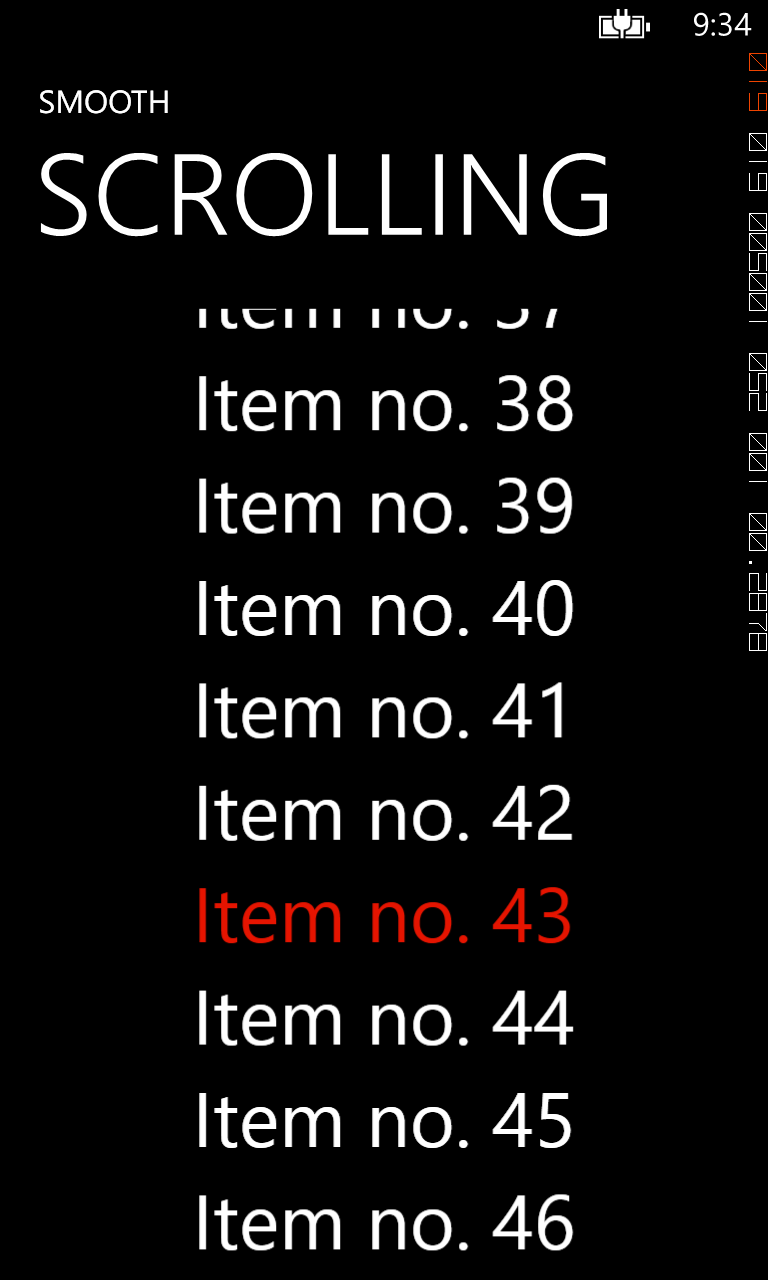
     Here is a screenshot from the sample:

As usual let me know if you need help. The code works on both Windows Phone 7.1 and Windows Phone 8 SDK.

SOURCE CODE


Sunday, 30 December 2012

Detect CPU architecture at runtime for Windows 8 Store Apps

  If you are developing an application for the Windows 8 Store it is very important that you test it on an ARM device (Surface RT, Asus VivoTab RT, Dell XPS 10,etc.) before sending it into certification. You will probably have some bad surprises and not everything that was fast&fluid on your development machine will continue to be so on an ARM device (the list scroll performance reminds me of the first version of Windows Phone). So you will have to simplify the layouts, animations and in some cases even rewrite part of your code. Parallel Programming is your friend if you can use it (for Kids' Orchestra I had the big problem that generating 100ms of sound output took more then 100ms so after 2 days of trying to optimize the C# source code I realized that I only had to use the Parallel.For and everything started working). 
   Due to performance differences you might need to split the user experience/code on different architectures (like disabling some animations on ARM). If this is the case it becomes very important to know the processor architecture on which your application runs. One solution would be to create 3 different packages of your applications and use the conditional compilation to differentiate between what happens on each architecture. If you still want to use only one package (Any CPU) it is enough to have a method that returns the processor architecture.
    The bad news is that WinRT framework doesn't have any method/property that returns the processor architecture  (at least I don't know it). The good news is that you can still use GetNativeSystemInfo as it is an api supported for Windows Store apps (it is even supported for Windows Phone 8 apps):


  For Windows Store apps you can use two approaches to call this api:
1. Use P/Invoke -this is the one I opted for;
2. Create a Windows Runtime Component in C++ that you can then call from managed code - this is the approach you will have to use if you need to call this function on Windows Phone 8.

   What I did is to create a public class, which I called CPU, and has one public static property NativeInfo that returns an SystemInfo object:

 public class SystemInfo  
{
public ProcessorArchitecture ProcessorArchitecture;
public ushort ProcessorArchitectureId;
public ProcessorType ProcessorType;
public uint ProcessorTypeId;
public uint NumberOfProcessors;
public ushort ProcessorLevel;
public ushort ProcessorRevision;
public uint AllocationGranularity;
};

and a public method IsProcessorFeaturePresent (invoking also a supported Api for Windows Store applications) which returns if a certain ProcessorFeature feature is supported or not.

I have also created a small sample that will give you a list with your processor details. Here is the result I got on  my Surface:


Hope you will find the class useful. Don't hesitate to contact me if you need further details.

SOURCE CODE:

NAMASTE!